A macro is inputted through the keyboard and is a function that makes it possible
to perform a series of actions at once that can be performed after creating them in advance.
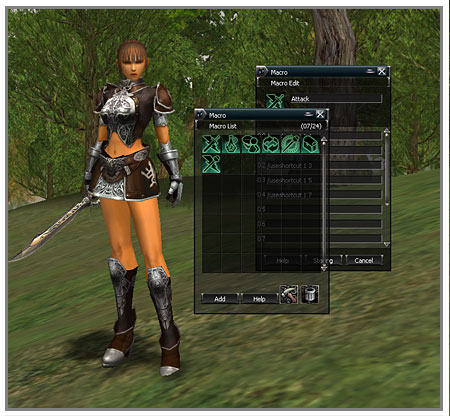
Creating and Editing Macros
A macro can be created, edited and saved by using the macro button in the system window. A single macro saved
in this way becomes an icon so that it can be used by placing it in the shortcut bar. A name and explanation
can be added to the macro. The name can be used with up to 12 characters and the explanation up to 32 characters.
All slash (/) commands and chatting symbols supported in the game can be used in macros. Substitute characters
can also be used to add additional delays or input a desired name. This means that the commands input into
a macro are the ones that can be performed by inputting them directly into the chat input window.
All characters have 24 user-defined macros and each individual macro has 12 input windows. One slash command
and its accompanying details can be typed into the input window with a maximum of 32 characters.
Substitute characters for macros
Substitute characters are commands for which the target’s name has been automatically given. The types
and methods of using substitute characters are as follows.
%target: The name of the target being targeted is shown.
%self: One’s own name is shown.
%pet: One’s own pet name is shown.
%party1 ~ %party8: The first – eighth party member names are shown.
Macro commands
/delay [time]: Wait until time (sec). If this command is entered, the following command is performed after
waiting the set number of seconds.
All other actions can be used with slash commands and so they can be used in macros.
/sit, /stand, /sitstand, /walk, /run, /walkrun, /attack, /attackforce, /exchange,
/targetnext, /pickup,
/assist, /invite, /leave, /partymatching, /vendor, /buy,
/personalmanufacture, /mountdismount, /socialno, /socialyes, /socialbow,
/socialunaware, /socialwaitinga, /sociallaugh, /socialapplause, /socialdance, /socialsad
Chat input is also used in the same way as the method of inputting into the chat window.
~ (ordinary chat), # (party chat), @ (clan chat), $ (alliance chat), ! (all chat), + (buy/sell chat)
When using chatting in a macro, to prevent excessive chat that just fills up the window, the output is delayed
automatically in the chat window. However, the buy/sell window is an exception to this.
Use of the shortcut bar through macros
By dragging and dropping the shortcut icons to the macro edit window, the use of the respective shortcuts
becomes possible. Directly editing with slash commands is as follows.
/useshortcut [container number] [shortcut slot number]: Uses the respective shortcut. In the event that a
component that is designated to a shortcut is a delayed skill, it is used after waiting the delay time.
/useshortcutforce [container number] [shortcut slot number]: Uses the respective shortcut with the effect
of the Ctrl key. In the event that a component that is designated to a shortcut is a delayed skill, it is used
after waiting the delay time.
Using skills with macros
Use is made possible by dragging and dropping the desired skill icon to the macro edit window. The direct
editing of slash commands is as follows.
/useskill [skill name]: Uses the respective skill. For skills with a delay time, it is used after waiting
the delay time.
/useskillforce [skillname]: Uses the respective skill with the effect of the Ctrl key. For skills with a
delay time, it is used after waiting the delay time.
Stopping a macro
In the event that the user carries out some action directly while performing a macro, the respective macro
stops immediately. This includes speaking in the chat channels and moving the character.
In the event of using another macro again within a macro, the macro stops while a message saying “This
is an unsuitable macro” appears.
* For more detailed information about macros, please refer to the macro section of Help in the game.
|

